
This guide explains how to create many stakeholders at once by importing a CSV file into the ReCykla platform. This is practical when, for example, you need to create all your suppliers in one go before assigning them to packagings.
Navigate to the import
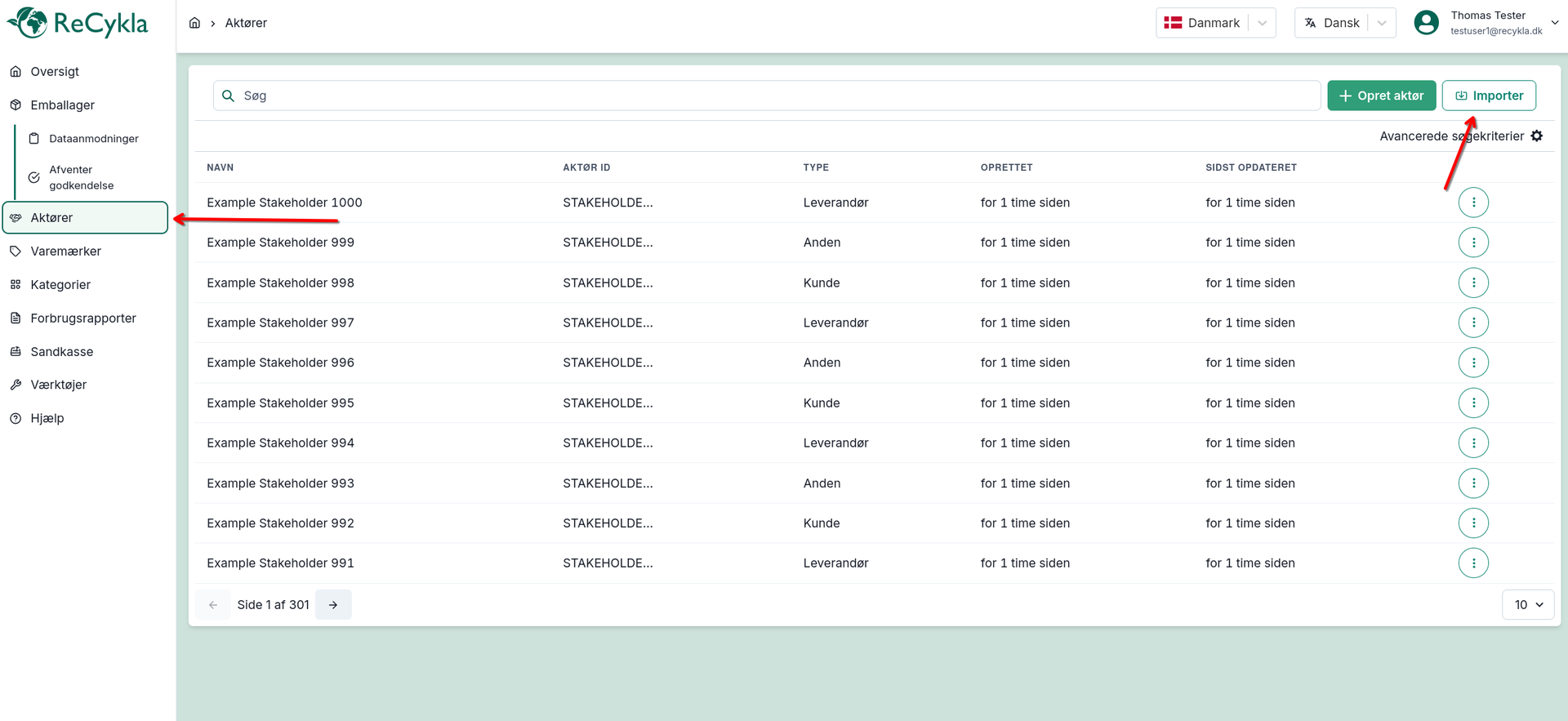
- Click Stakeholders in the navigation menu on the left side.
- Click the Import button at the top of the page.
Step 1: Download and fill in the template
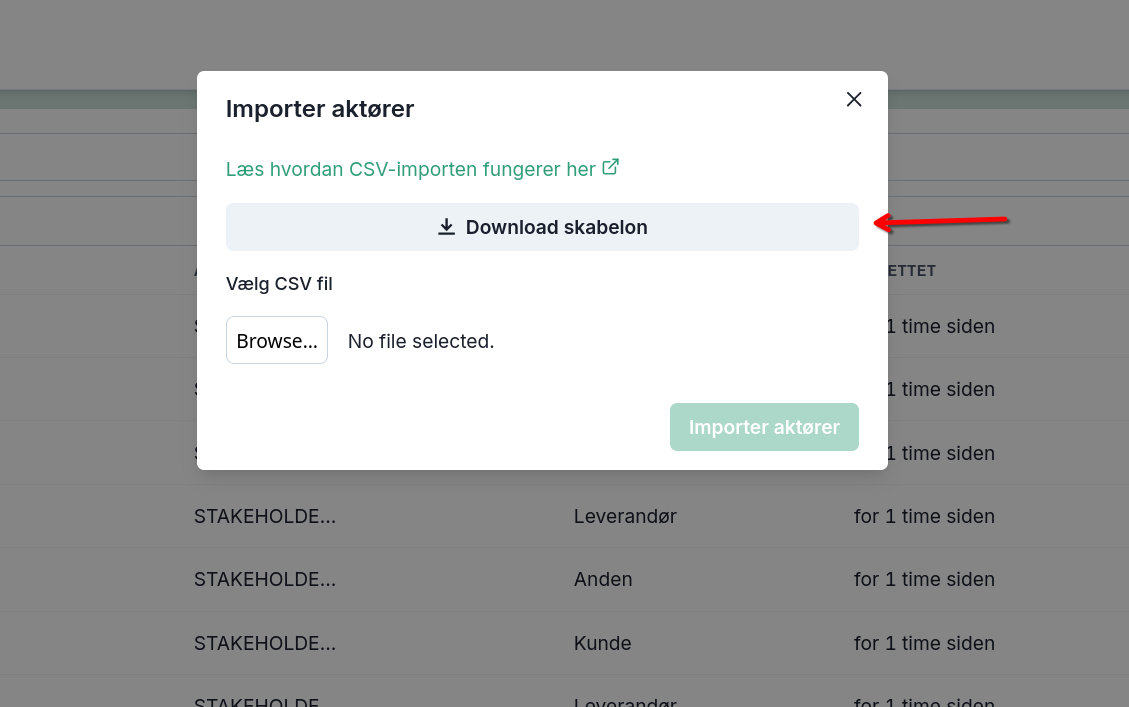
- Click Download template in the window to download an empty CSV template.
- You can then open the template in e.g. Excel and fill it in.
The first row in the file is reserved for headers. The columns are separated by semicolons and have the following headers:
Name; Stakeholder ID; Stakeholder type
Fill in one stakeholder per row below the headers:
- Name — required. The name of the stakeholder, e.g. the company name, max. 256 characters.
- Stakeholder ID — optional, but recommended. Your own ID for the stakeholder, max. 64 characters. The stakeholder ID can, among other things, be used to assign the stakeholder to packagings via CSV file — see the guide Assign stakeholders to packagings via CSV file..
Stakeholder type — required. Enter one of the following values:
- supplier — supplier
- customer — customer
- other — other stakeholder
Example of one row in the file:
Acme Inc;ACME-001;supplier
Note: The template does not have to be used, it is only a help. The CSV file can also be generated directly from other systems. A more detailed overview of columns and limitations can be found at the bottom of this page.
Step 2: Select the CSV file
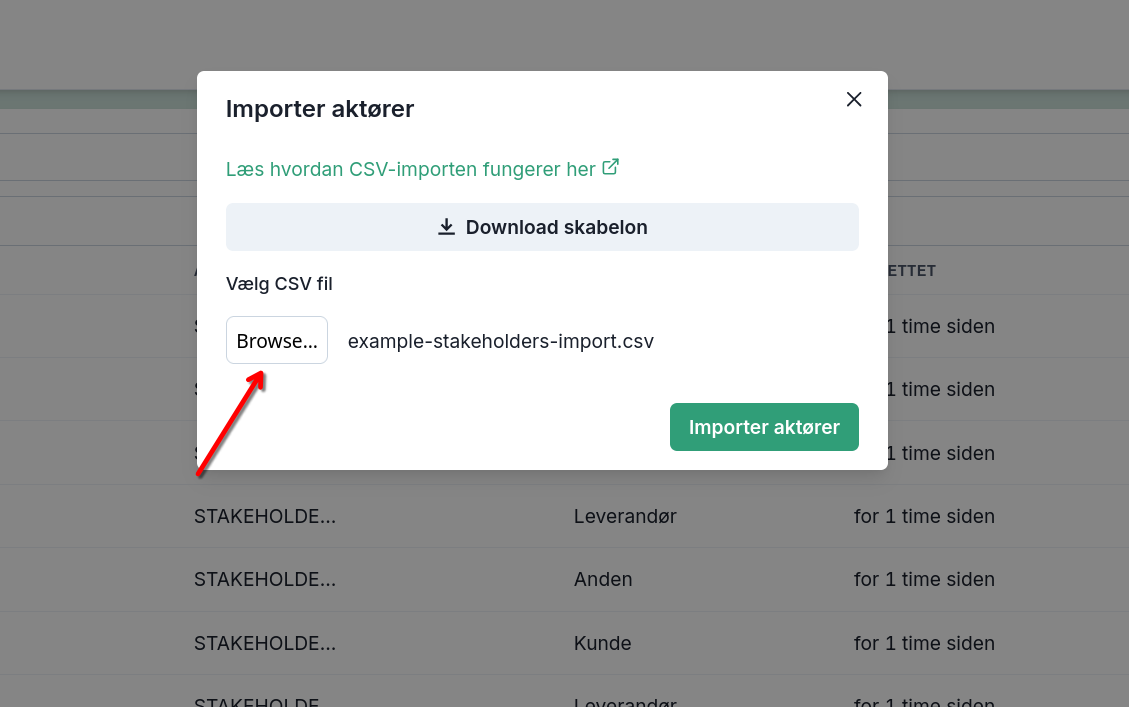
- Back on the platform, click Select CSV file and choose the filled-in file.
- The file is validated immediately. If there are errors, you are shown exactly which row the problem is on — for example if two rows have the same stakeholder ID. Fix the error in the file and try again. You can repeat this until the file is error-free.
Step 3: Import the stakeholders
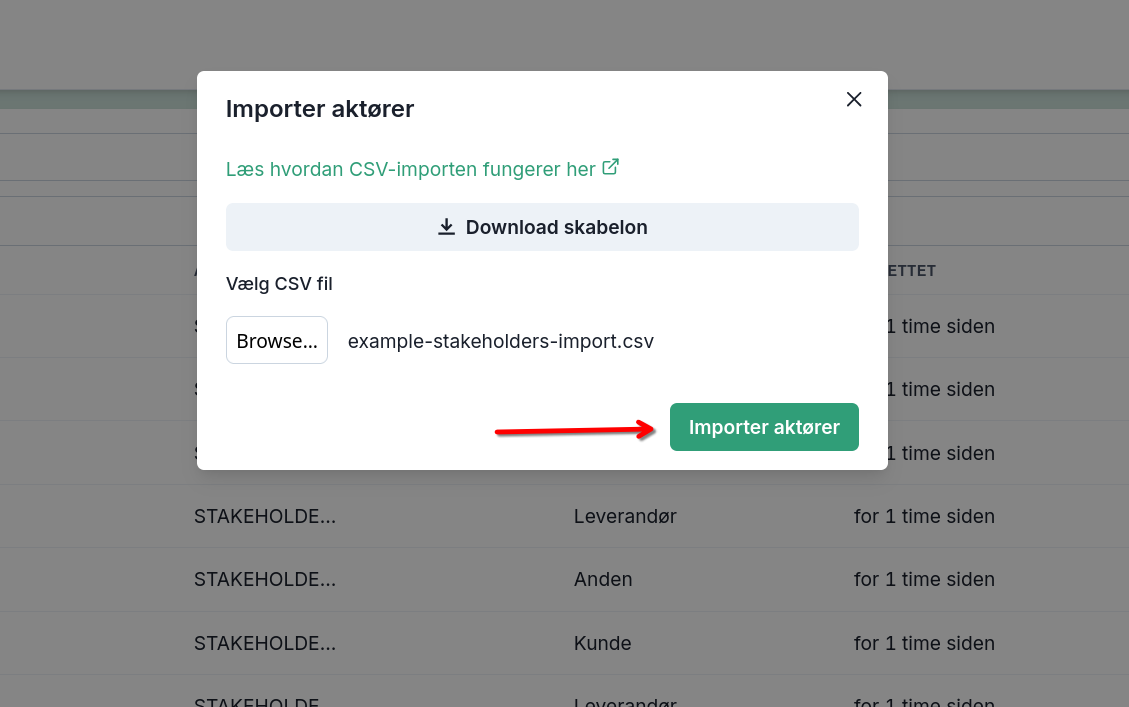
Click Import stakeholders in the window. If everything goes well, you get a message with the number of imported stakeholders, and the stakeholders have now been created.
Tip: Once the stakeholders are created, you can assign them to your packagings, either one at a time on the packaging, or many at once via the CSV import for assigning stakeholders. See also the guide Import packagings via CSV file.
If an error occurs during the import, you will be shown an error message and have the option to download a CSV file containing only the stakeholders that failed, along with an error code describing the problem. Depending on the error, you can try to fix it, or simply try again. The downloaded CSV file can be used directly for import, so you can try again — this time only on the stakeholders that failed.
Technical overview
File requirements
- The file must be a CSV file (text/csv) of max. 2 MB
- The file can contain at most 10,000 stakeholders
- The first row is reserved for headers. The columns are positional, so the column order must be exactly the same as in the template.
- Columns are separated by semicolons (;)
- Empty rows are skipped
Columns
Column | Påkrævet | Format og begrænsninger |
Name | Yes | Text, max. 256 characters |
Stakeholder ID | No | Text, max. 64 characters. Must be unique in the file and on the platform. If the ID already exists, only that single row fails and the rest are still imported. |
Stakeholder type | Yes | Exactly one of the values supplier, customer or other |