
This guide explains how to use our validation tool to turn data collection sheets into machine-readable packaging data, check them for problems, and import them directly into the ReCykla Platform.
Getting to the tool
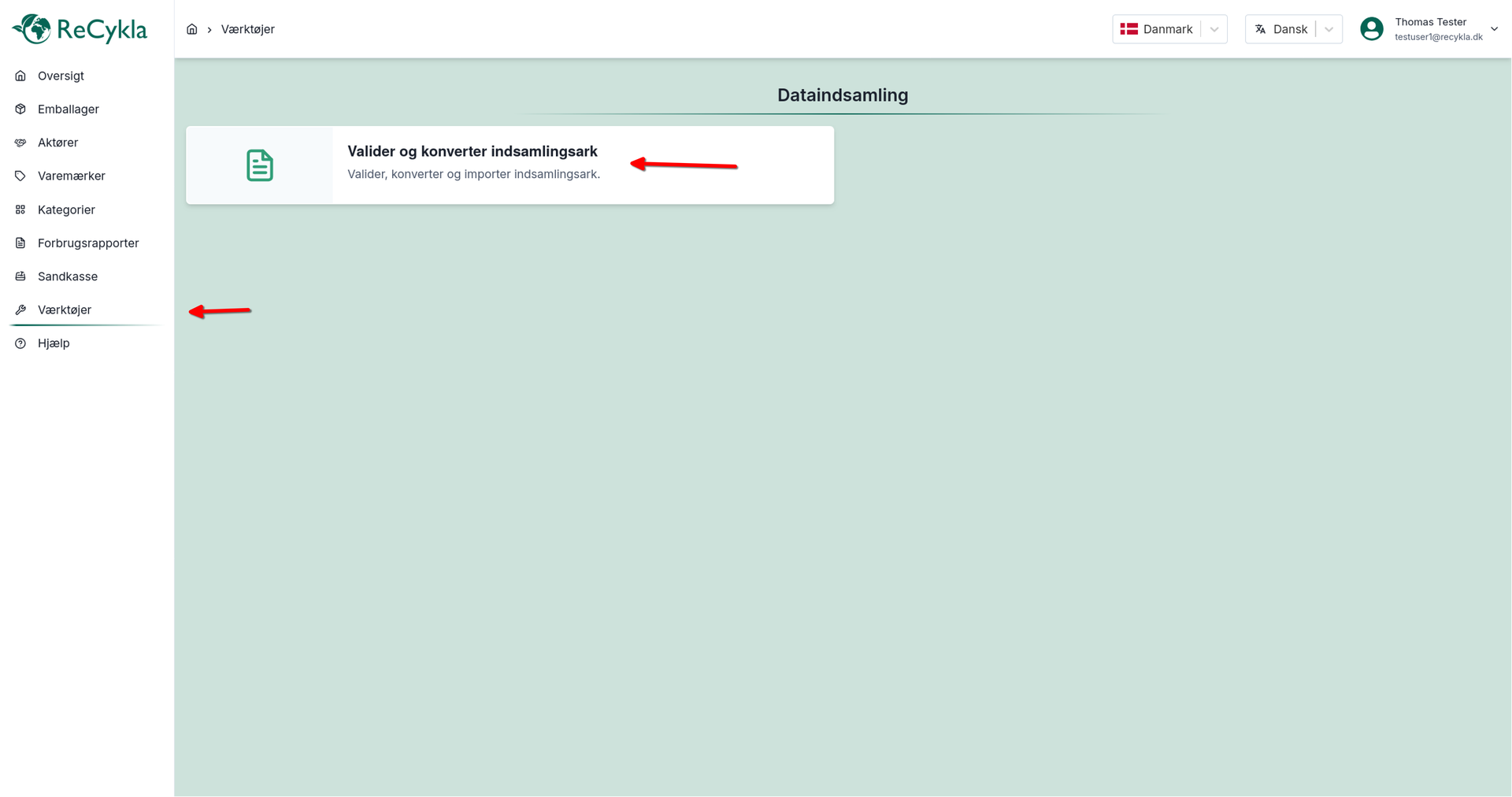
- In the navigation sidebar, click Tools.
- Select the Validate and convert data collection sheets tool.
- Wait for the tool to load.
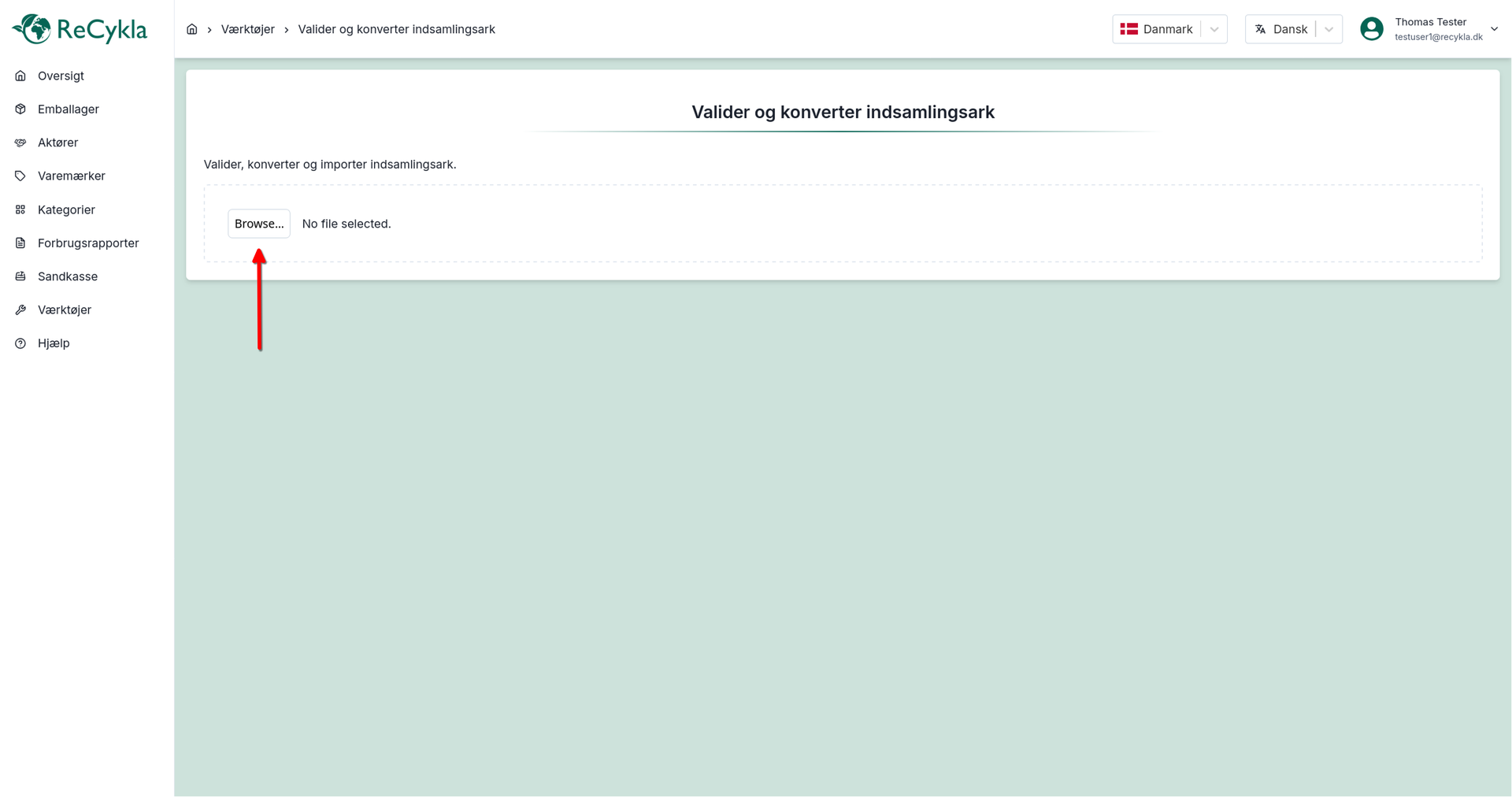
Step 1: Select a data collection sheet
- Click Browse... to open the file picker.
- Vælg det Select the desired data collection sheet indsamlingsark
The tool will automatically convert and validate the selected sheet.
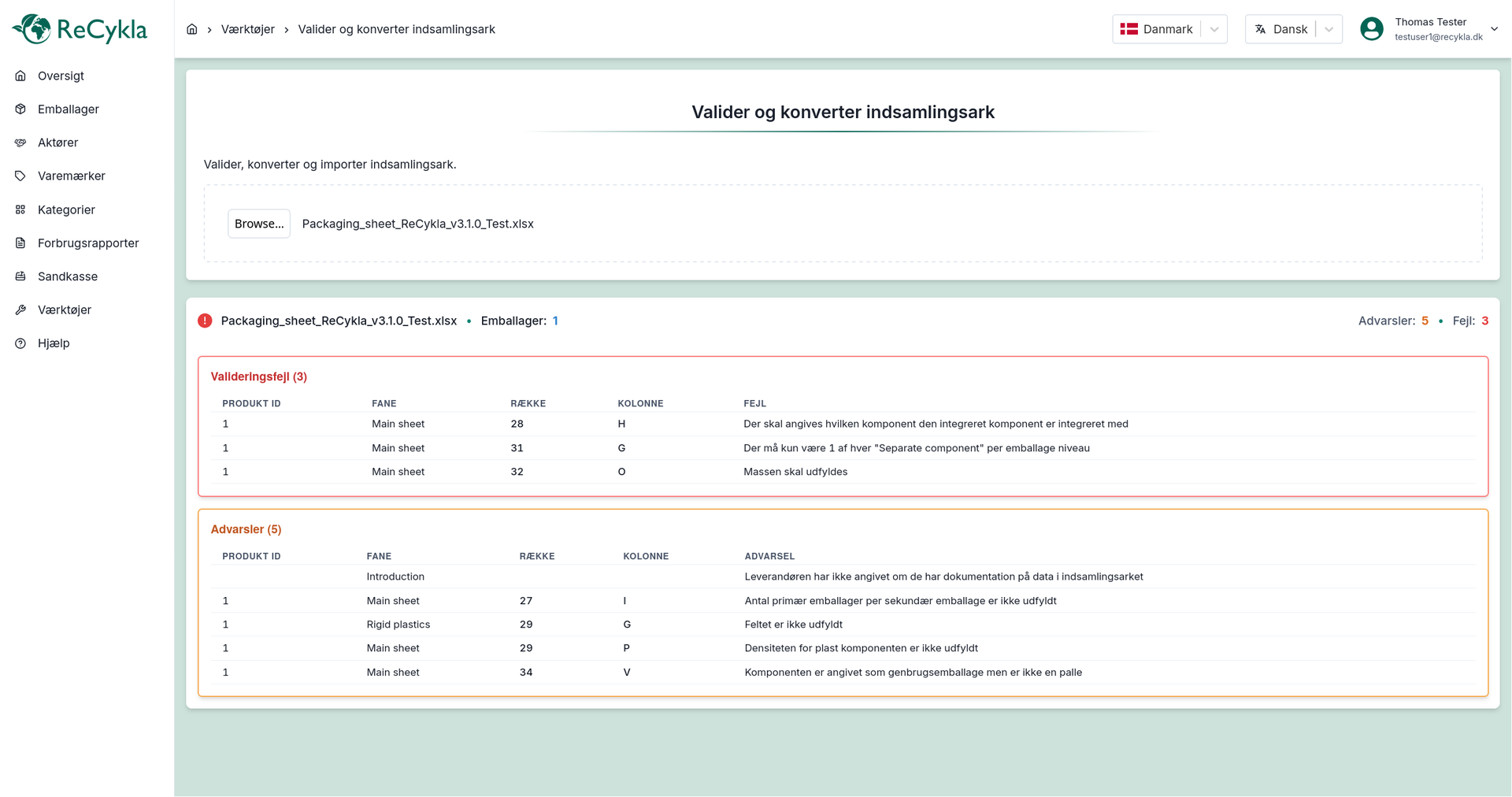
Step 2: Review the validation results
Once the sheet has been processed, the tool shows a summary of the file, including the number of packagings found and the number of errors and warnings.
If any issues were found, you are presented with a table showing exactly what was found and in which specific cell. Each row in the table tells you:
- PRODUCT ID — the product the issue relates to.
- SHEET — the sheet in the Excel file where the issue was found.
- ROW — the row containing the problem cell.
- COLUMN — the column containing the problem cell.
- ERROR / WARNING — a description of the issue.
Note: If no column is given, the issue covers the whole row rather than a specific column.
If there are issues
- Errors must be fixed in the Excel sheet before you can import.
- Warnings should be reviewed — fix them if they are real mistakes, or proceed if they are not relevant.
Re-running validation
If you fix any of the issues, simply re-select the updated Excel sheet and run it through validation again. You can repeat this as many times as needed until the sheet is ready.
Step 3: Import the packagings
Once validation finds no issues, or only warnings that aren't relevant, click the Import button. A modal opens with a few options:
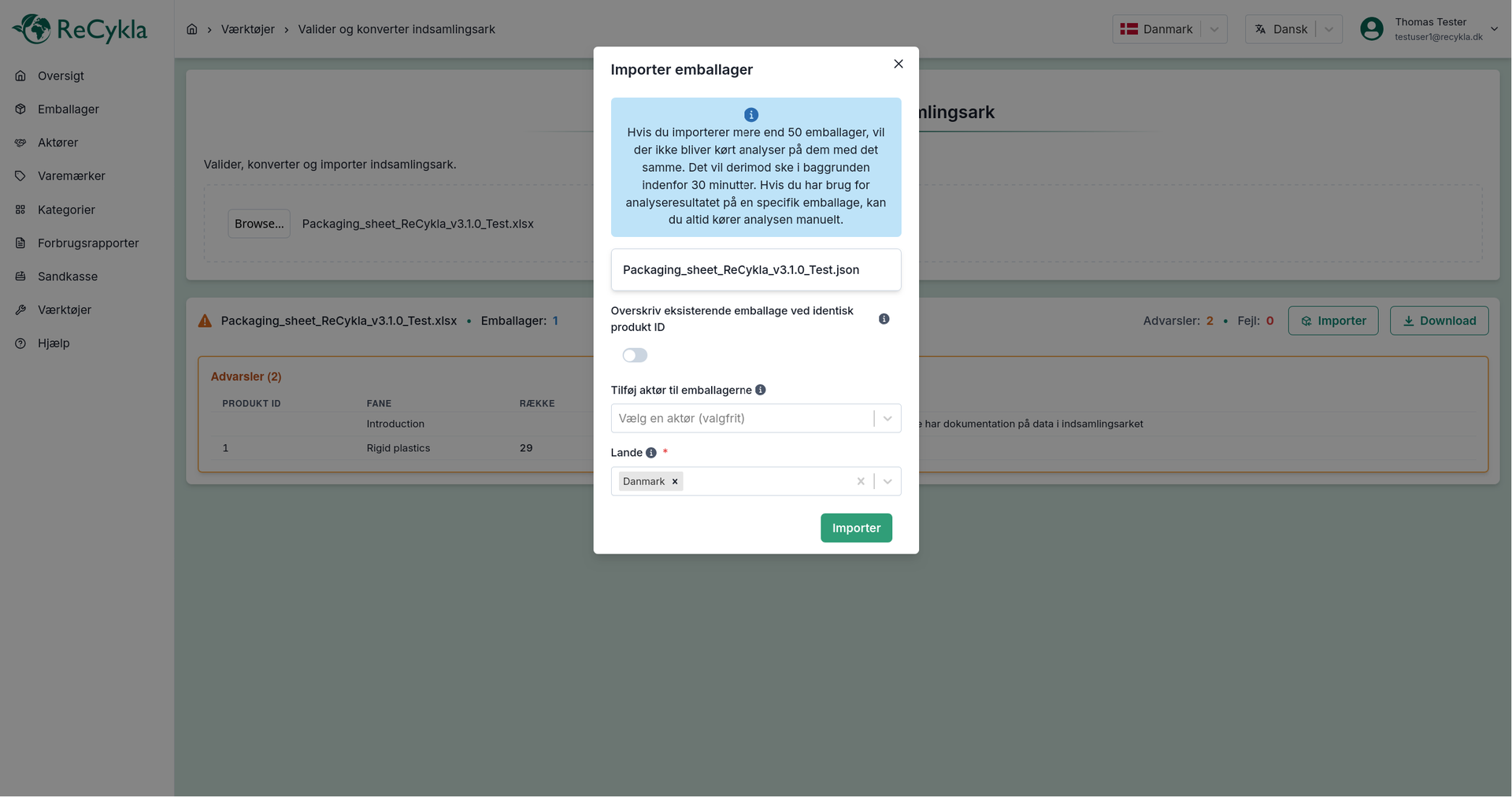
1. Replace existing packaging on product ID conflict
If you are importing packagings that are already on the platform (same product ID), the import will normally fail to prevent you from accidentally overwriting data you didn't mean to. By ticking "Replace existing packaging on product ID conflict", you can overwrite existing packagings to update their data. If you ran the import without the option enabled and it failed, you can safely retry it with the option enabled.
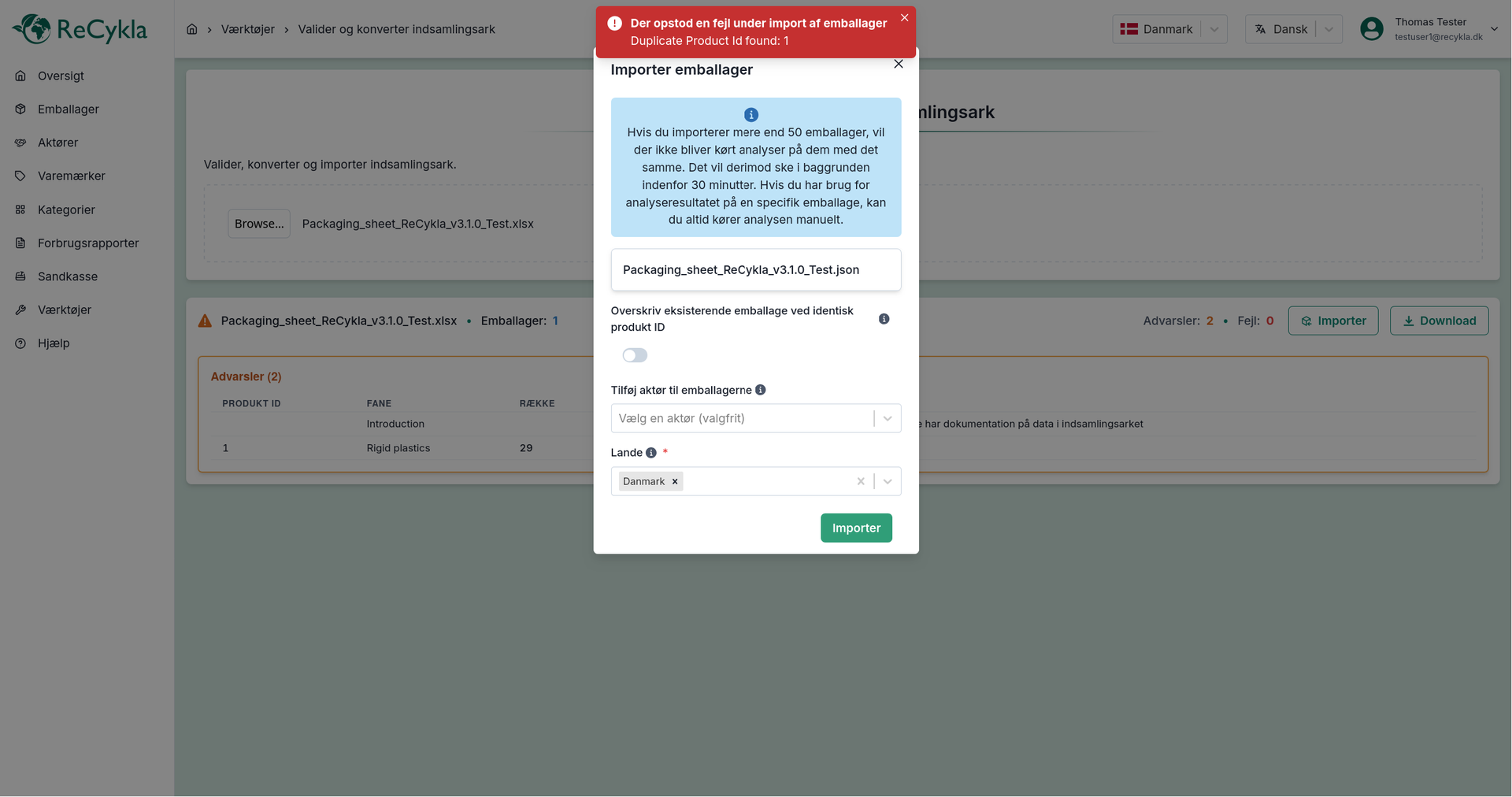
When overwriting data, only the packaging data is overwritten. Any categories, stakeholders, brands, descriptions, and so on stay intact. Stakeholders or countries selected with the options below are added to the packagings, but existing stakeholders or countries on the packagings won't be removed.
2. Assign stakeholder to packagings
A multi-select where you can add suppliers or other relevant stakeholders to the imported packagings. The stakeholders you select are applied to all packagings in the import. This field is optional.
3. Select countries
Choose the countries the imported packagings should be available in, for example Denmark. If any of the packagings in the data collection sheet have a deposit on them, that deposit will apply to all selected countries.
Completing the import
Click Import in the modal. If all goes well, your packagings are now imported into the platform.
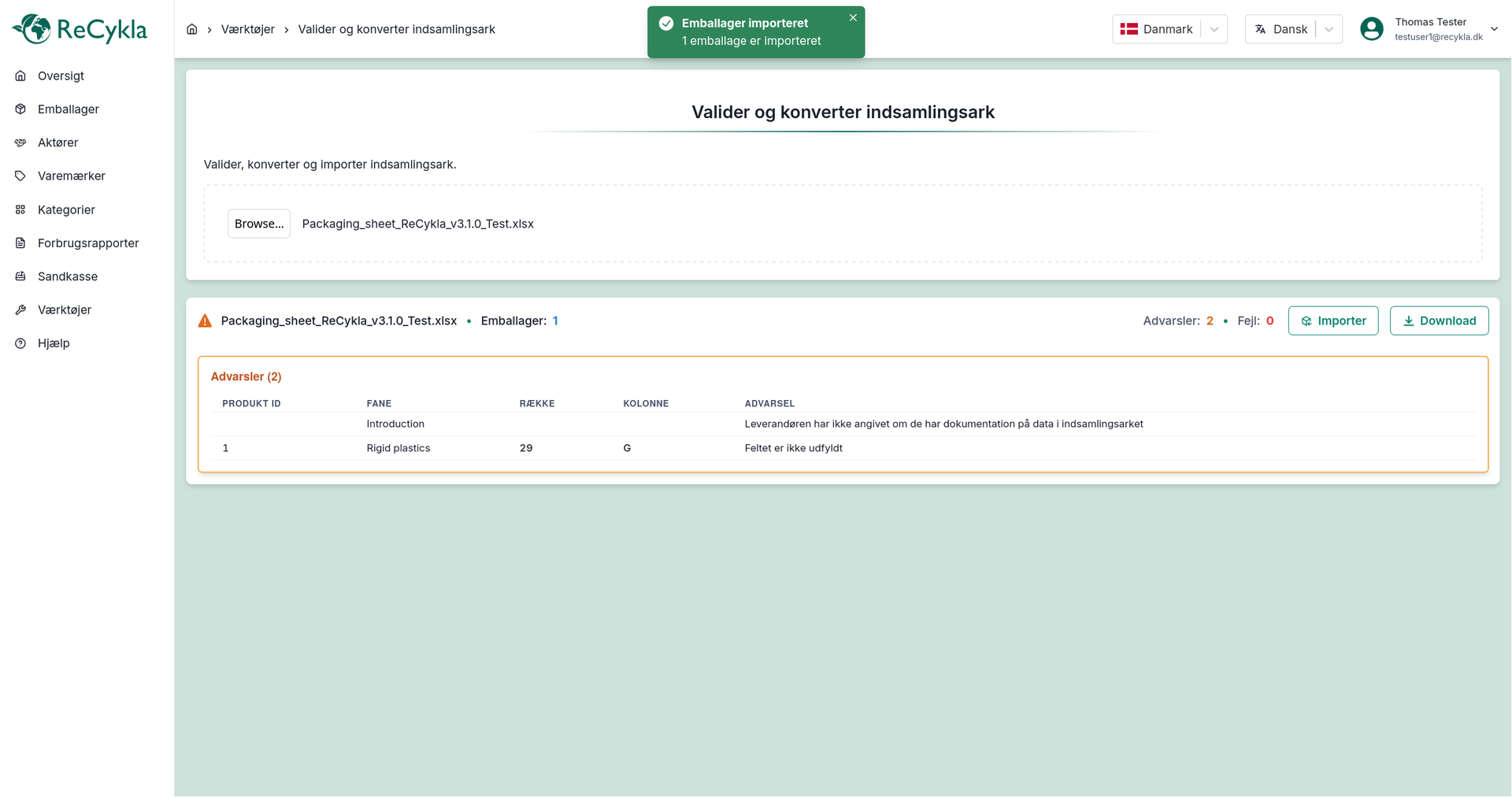
Note: When importing a large number of packagings, the analysis of the imported data is delayed. The analysis should be completed within 20–30 minutes.